
How to take a passport photo with an iPhone
The iPhone camera is one of the easiest tools for passport photos — once you switch off the post-processing features that subtly change how your face looks.
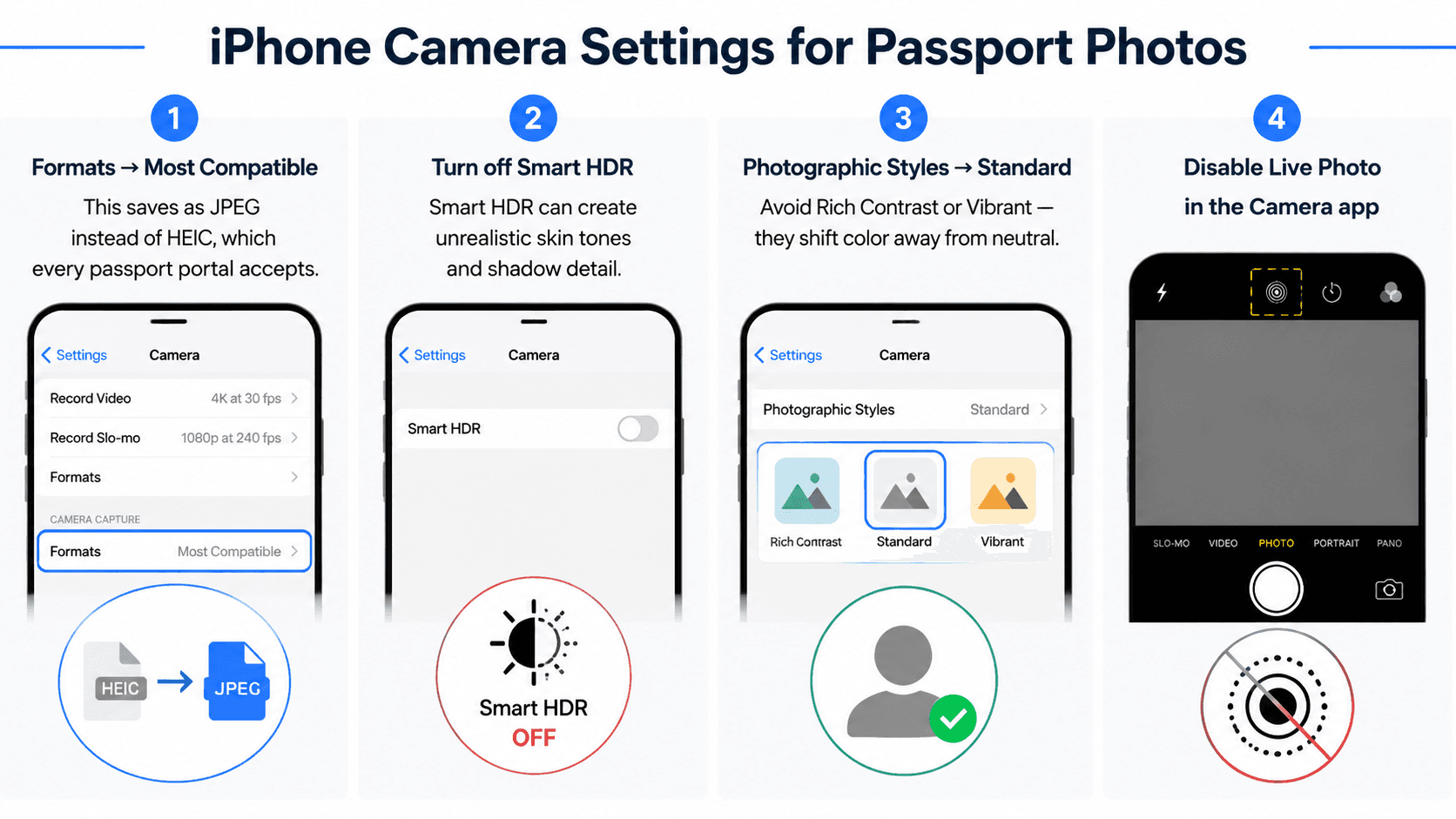
Camera settings to change first
- Settings → Camera → Formats → Most Compatible. This saves as JPEG instead of HEIC, which every passport portal accepts.
- Settings → Camera → turn off "Smart HDR". Smart HDR can create unrealistic skin tones and shadow detail.
- Settings → Camera → Photographic Styles → Standard. Avoid Rich Contrast or Vibrant — they shift color away from neutral.
- Disable Live Photo in the Camera app for the shoot.
Use the 1× rear lens
The main 1× lens on every iPhone since the iPhone 11 produces accurate facial proportions. Don't use 0.5× ultra-wide (distorts faces) or pinch-zoom (digital crop loses detail). Telephoto (2× / 3×) is acceptable but harder to frame.
Hand the iPhone to someone else
Selfies with the front camera almost always fail biometric checks because of the wider lens. If you're alone, prop the iPhone on a shelf or tripod 1.2–1.5 m away and use the 3-second timer with the rear camera facing you (use the screen on recent Pro models, or a Bluetooth shutter).
Lighting and background
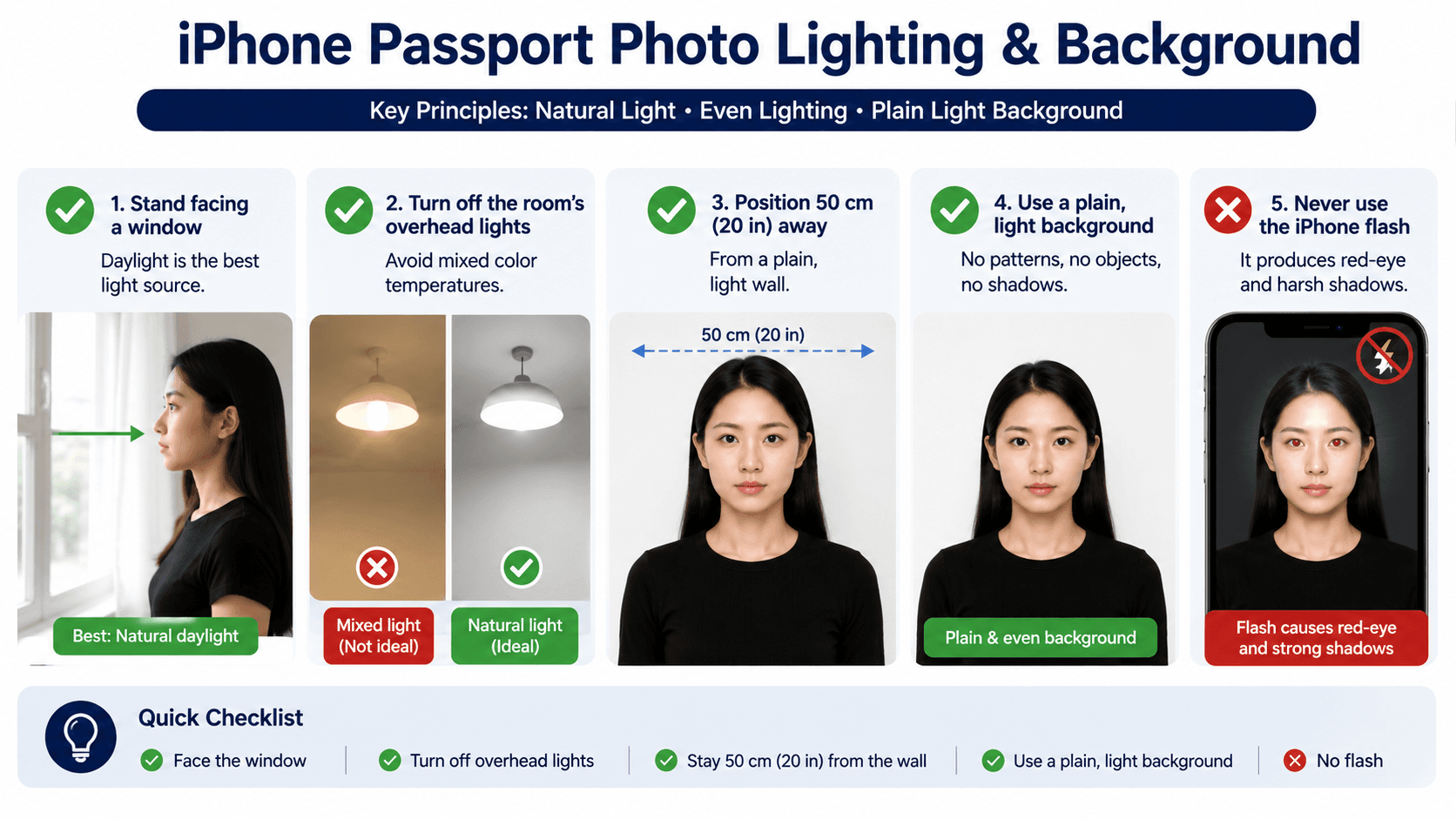
- Stand facing a window — daylight is the best light source
- Turn off the room's overhead lights to avoid mixed color temperatures
- Position 50 cm (20 in) away from a plain, light wall
- Never use the iPhone flash — it produces red-eye and harsh shadows
Pose
Look straight into the lens. Keep your shoulders square, head level, and a neutral expression with the mouth closed. Take 5–10 photos so you have options.
Upload and verify
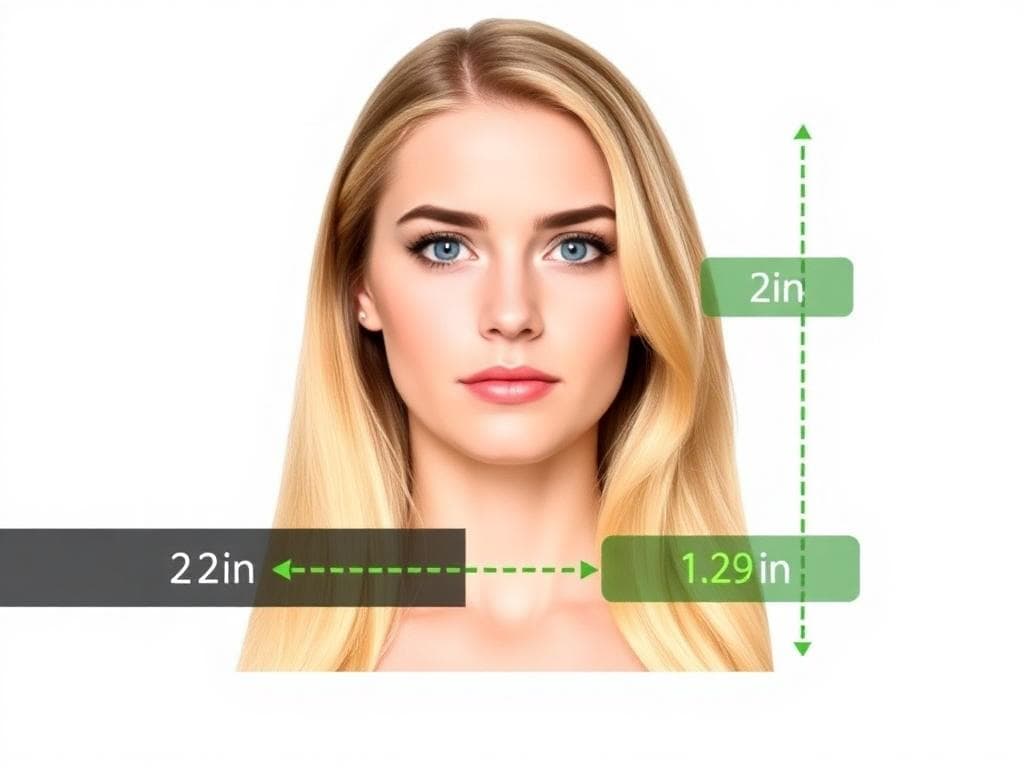
Open Safari, go to our site, and tap upload. Pick the photo from your library — the AI handles cropping to the correct passport size, background cleanup, and compliance checks. A human expert reviews it before delivery.
Submit digitally or print
Save the verified file to your iPhone and attach it directly to your online passport application. For prints, AirDrop the 4×6 in template to a friend's computer or use any drugstore kiosk that accepts iPhone uploads.
Ready to create your photo?
AI-checked, expert-verified, with a 100% refund guarantee.