
Free Online Image Cropper: Crop Photos to Any Size in Seconds
Learn to crop an image online with preset ratios or exact dimensions for social, product, document, and ID photos.
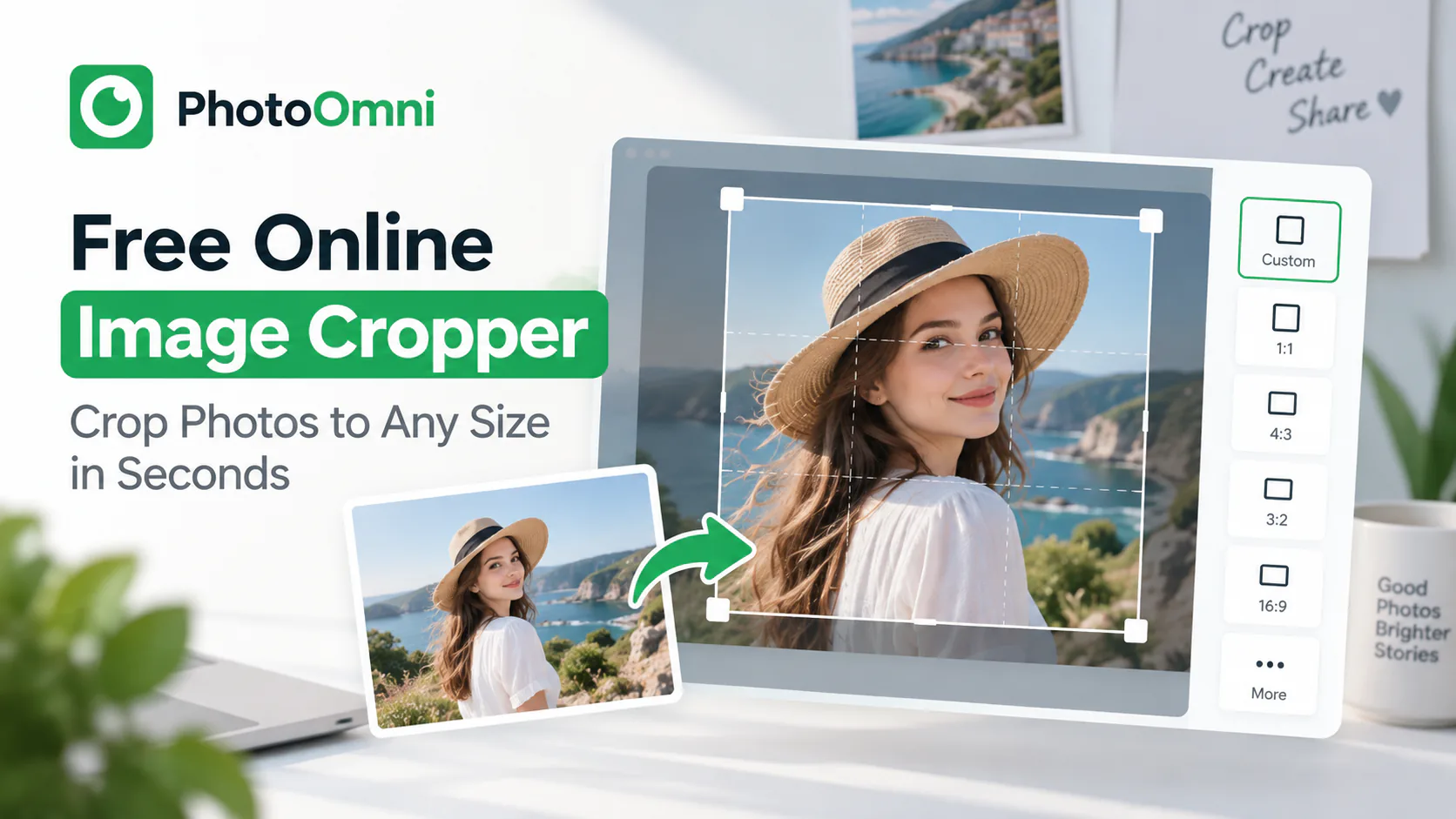
Quick Answer
To crop an image online, upload it to a browser-based cropper like PhotoOmni, choose a preset ratio or enter exact custom dimensions, drag the crop box to frame your subject, then download the result — no software install or account needed, and it takes under a minute. This works for social media photos, product images, forms, and official ID photos that require an exact size.
Here's the full walkthrough, plus the most common sizing scenarios people search for and get wrong.
How to Crop an Image Online
- Upload your photo to an online image cropper like PhotoOmni
- Choose a crop shape or exact dimensions — square, standard ratios (4x6, 16:9), or a custom pixel size
- Drag the crop box to frame the part of the image you want to keep
- Preview and adjust — most tools let you zoom, rotate, or nudge the frame before finalizing
- Download the cropped image, usually as a JPEG or PNG
No account or software download is required for most browser-based croppers, and the whole process typically takes under a minute.
Common Cropping Scenarios
Social media profile photos and covers Different platforms use different aspect ratios — square for most profile photos, wide banners for covers. Cropping to the platform's exact ratio avoids the awkward auto-crop some apps apply after upload.
E-commerce product photos Consistent, centered product crops across a whole catalog make a store look more professional. A cropper that lets you set the same exact pixel dimensions for every image is far faster than doing it manually in a design program.
Government and official ID photos Documents like passports, visas, and REAL ID applications require photos cropped to an exact size — commonly a 2x2 inch square — along with specific head positioning, background, and lighting rules. These aren't flexible: an image that's the wrong size or has the head positioned incorrectly can get an application rejected. If this is why you're here, our [passport and ID photo guide] walks through the exact specs.
Resizing for documents and forms Resumes, ID badges, and online forms often specify a maximum file size or fixed dimensions. Cropping first, then compressing, keeps the image sharp instead of stretched or distorted.
Cropping vs. Resizing: What's the Difference?
Cropping removes part of an image to change its shape or focus — you're cutting the frame down. Resizing scales the whole image up or down without removing anything. Most online tools let you do both in the same step: crop to the right ratio, then resize to the exact pixel dimensions you need. If you resize without cropping first, you risk squashing or stretching the image out of proportion.
Tips for a Clean Crop
- Start with a high-resolution original. Cropping cuts pixels; you can't add resolution back afterward.
- Center your subject before you upload if the tool doesn't let you reposition after cropping.
- Check the exact pixel or inch requirement before you crop, especially for anything going into an official form — guessing "close enough" is the most common reason uploads get rejected.
- Save a copy of the original before cropping, in case you need a different crop later.
Frequently Asked Questions
Is there a free way to crop images online? Yes. Browser-based tools like PhotoOmni crop images for free with no software download or account required.
Is it safe to crop photos online? Reputable tools process images in your browser or delete them from their servers shortly after use — check a tool's privacy policy if you're cropping anything sensitive, like an ID document.
Can I crop a photo to an exact size in pixels or inches? Yes — most online croppers, including PhotoOmni, let you enter exact custom dimensions rather than only offering preset ratios.
Do I need Photoshop to crop a photo? No. Browser-based tools handle basic cropping, rotating, and resizing without any design software.
What file formats can I crop and download? Most online croppers accept JPEG, PNG, and sometimes WEBP as input, and let you download as JPEG or PNG.
Can I crop a photo for a passport or ID application with the same tool? Yes, as long as the tool supports exact custom dimensions and shows a guide for required head size — see our passport photo size and crop guide for the specific rules.
Need to crop a photo to an exact size right now? PhotoOmni lets you crop to any custom dimension — including standard ID and passport photo sizes — free, with no account required.
For an official 2×2-inch image, use the detailed passport photo size and crop guide. You can also compare passport photo editors and background removers before changing a sensitive image.