
How to Check Your DV Lottery Photo: A Step-by-Step Guide
Check your DV lottery photo in five steps: file size and format, head size in pixels, background and face rules, and what a photo checker can and cannot catch.
Quick answer: To check a photo for DV lottery entry, inspect the saved JPEG, measure the head and eye positions, review the face and background, then read each checker result. Use a color, square 600 × 600 pixel JPEG of 240 KB or less. A tool result alone cannot establish that your photograph meets every requirement.
Step 1: Check the file
Right-click the final photo and open its properties, or open the image information panel in a photo editor. On a Mac, Preview's inspector can show image dimensions and format. Check the saved file, rather than relying on the original camera settings.
- Format: JPEG (.jpg). PNG, HEIC and PDF are different formats. Renaming the extension does not convert a file.
- Shape and dimensions: square, exactly 600 × 600 pixels for the DV entry image.
- File size: 240 KB or less.
- Color: a color photograph, not black and white.
The DV section of the State Department's photo requirements specifies 600 × 600 pixels. The general digital-image guidance also describes larger square images for other visa uses. Follow the DV entry specification when checking your DV file.
We inspected the JPEG produced during our DV file-preparation walkthrough: it was 600 × 600 pixels, RGB JPEG, 106,378 bytes. Those properties passed the listed file checks. The demonstration portrait was synthetic and its crop was too tight, so it still was not a suitable application photo. File properties and picture quality need separate checks.
Step 2: Measure your head size
On a 600 × 600 image, measure from the bottom of the chin to the top of the head, including the hair. Use the photo editor's pixel ruler or selection tool. A physical ruler held against a monitor is unreliable because screen zoom changes the apparent size.
| Measurement | Calculation | Range on a 600 × 600 image |
|---|---|---|
| Head height, chin to top of hair | 600 × 50% to 600 × 69% | 300–414 pixels |
| Eye line above the bottom edge | 600 × 56% to 600 × 69% | 336–414 pixels |
| Eye line below the top edge | 600 minus the bottom-edge measurement | 186–264 pixels |
For example, if the top of the hair is at vertical position 70 and the bottom of the chin is at 430, the head height is 360 pixels: 60% of the image. If the eyes are at position 220 from the top, their height above the bottom is 380 pixels, about 63.3%. Both measurements fall within the stated ranges. These are calculation examples, not measurements of the screenshots below.
The official composition template explains the measurement points. For a correctly sized 2 × 2 inch print, the head-height guide is 1 to 1⅜ inches and the eye-height guide is 1⅛ to 1⅜ inches from the bottom. Use pixels when checking the digital entry image.
Step 3: Check the picture itself
Open the photo at full size. Look at the edges of the head as well as the face.
- Is the background plain white or off-white, without visible shadows or patterns?
- Are you facing the camera directly, with your head level and both eyes open?
- Is your expression neutral, with your mouth closed?
- Is your full face visible, without hair covering the eyes?
- Are glasses, hats and headphones removed? Religious head coverings must leave the full face visible and must not cast shadows. Check official guidance if you need a medical exception for glasses.
- Was the photo taken within the last six months, and was it not used for a previous year's entry?
- Is it sharp, evenly lit and free of beauty filters, generated facial changes or retouching that changes your appearance?
Retake a photograph with deep shadows or a bad camera angle. A different crop cannot fix every capture problem.
Step 4: Run it through a checker and read every result
The following is a real browser walkthrough of PhotoOmni's DV photo workflow, checked on November 14, 2026. Screenshots use an AI-generated demonstration portrait, which must not be used for a real identity application. We tested the upload and review screens, not paid final delivery.
Open the DV-specific page
Open the PhotoOmni DV lottery photo checker and select Upload a photo. Choose your original photograph. Keep the original available if you need to compare the crop or retake the picture.
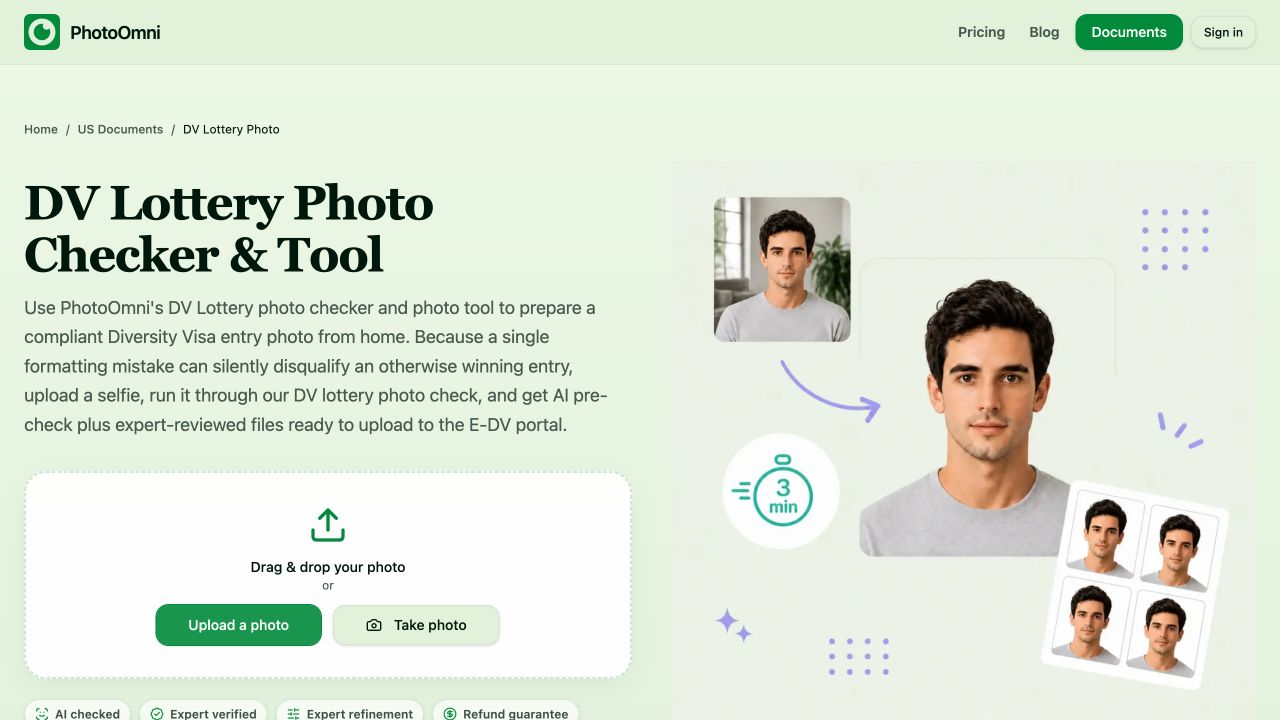
Actual DV tool page. Upload your own original photograph.
Inspect the preview and checklist
After upload, the site prepared a preview and displayed 600 px width and height guides. Our sample showed Passed for source dimensions, one face, focus, face centering and head-size checks.
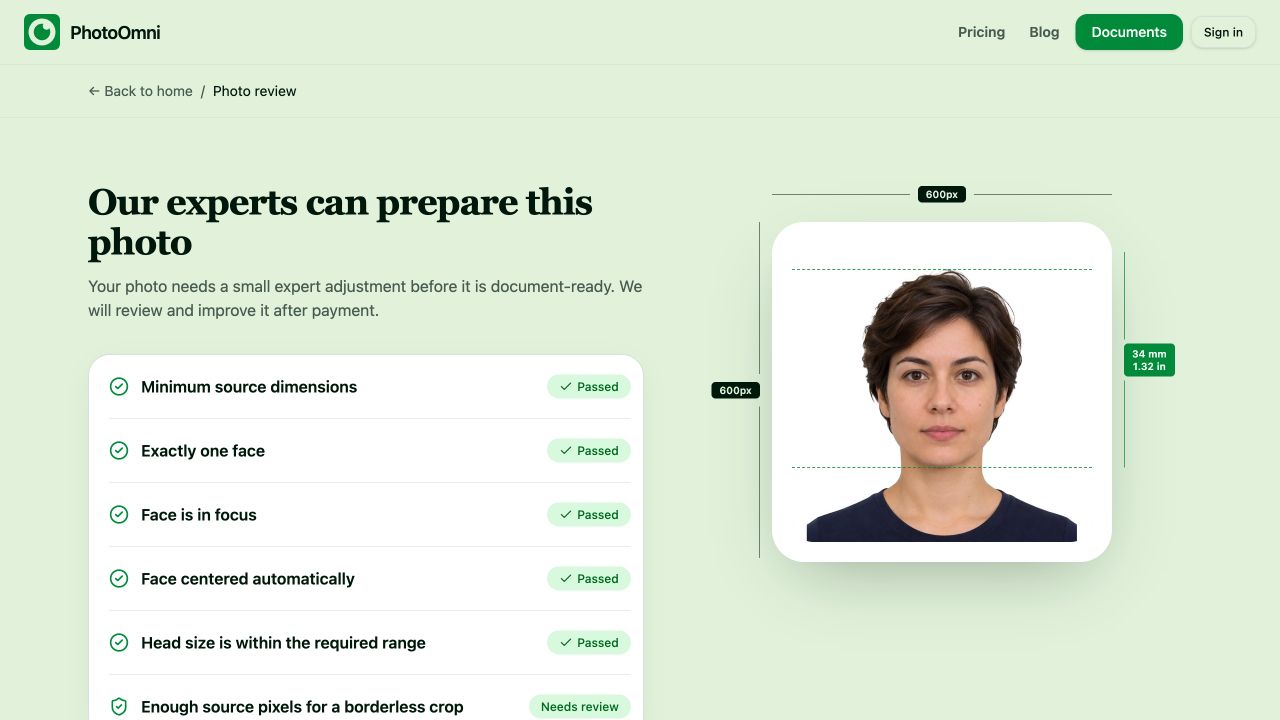
The preview and green labels describe individual checks. They are not government approval.
Act on a warning before continuing
One result still said Needs review beside Enough source pixels for a borderless crop. The page offered Continue with expert fix and Retake photo.
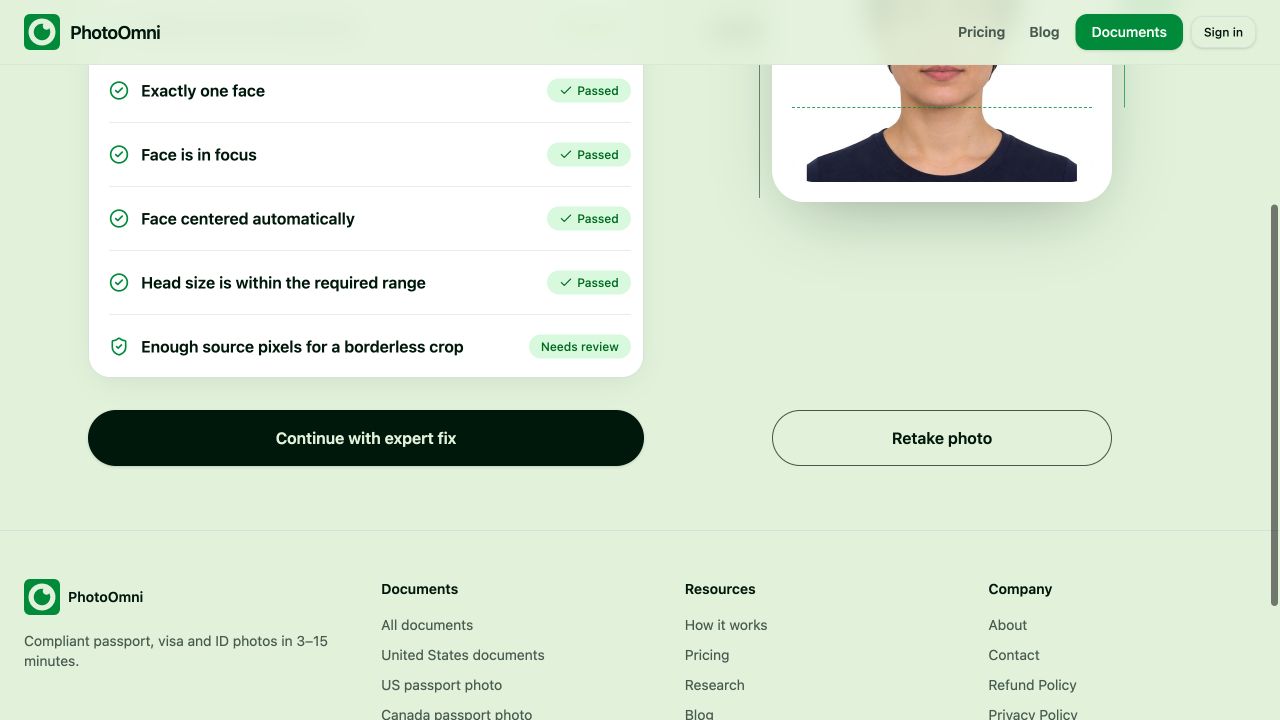
This sample did not have a clean result across all checks. The screenshot records the warning, not a successful DV-photo approval.
If your original is framed too tightly, take a new photo with more room around your head and shoulders. Do not assume generated borders or a promise of later adjustments makes the original suitable. The review page says expert processing follows payment; the prepayment preview is not a final downloadable submission file.
Use this distinction when reading any DV photo test:
| Check | What the result tells you | What still needs checking |
|---|---|---|
| Actual file format, dimensions and byte size | Technical properties can be measured directly | Recheck the exported file after the last save |
| Head size, face position and background detection | An estimate based on the tool's detection | Verify measurement points, shadows and image edges yourself |
| Face and expression detection | A tool may flag obvious problems | Look for closed eyes, head tilt and an unsuitable expression |
| Photo age, prior use and appearance changes | An ordinary checker cannot establish these from pixels alone | Confirm the capture date, entry history and unaltered appearance |
The State Department Photo Tool is a separate cropping tool. It can help produce a square image; it does not check every quality requirement or certify acceptance. A green result from a private tool means only that the checks it actually performed passed.
Step 5: Final check before you upload
Open the final saved file. Confirm its dimensions, JPEG format and file size again after the last edit or export. Compression can change the file size, and saving a print sheet creates a different image from the single-person digital photo.
Select the single-person JPEG for each required family member. Do not upload a screenshot of a preview, a PDF, a multi-photo print layout or someone else's demonstration image. Use a recent photo for the current entry and check the current year's DV instructions before submission.
Get it right with PhotoOmni
PhotoOmni's DV photo workflow provides a preview and review messages so you can identify issues before proceeding. Read any warning, retake an unsuitable original, and inspect the final delivered file yourself. The receiving authority makes the acceptance decision.
For cropping and saving steps, see our DV photo requirements and file-preparation guide. This article focuses on checking the result.
FAQ
What size is a DV lottery photo?
For the digital DV entry, use a square 600 × 600 pixel JPEG of 240 KB or less.
Can I use my passport photo?
Only if the actual photograph meets DV requirements, including recency and composition, and you have the correct digital file. A passport photo's label or prior acceptance does not establish DV compliance.
Does a DV lottery photo checker guarantee acceptance?
No. File checks are useful, while composition detection can be imperfect. A checker cannot reliably prove when a picture was taken or whether it was used in an earlier entry.
Can I smile in my DV photo?
Use a neutral expression with both eyes open. The State Department's visa-photo guidance specifies a neutral expression; do not apply a different passport-photo smiling rule to DV entries.
Official sources
- Visa photo requirements, including the DV entry section
- Photo composition template
- Digital image requirements
- Current Diversity Visa entry instructions
Related Articles
- DV Lottery Photo Requirements 2027: Size, Checker and Rejection Rules
- 2×2 Photo Size Converter: Pixels, Cropping Rules, and How to Avoid Invalid Edits
- Why Was My Passport Photo Rejected? 15 Common Reasons & Fixes
About the Author
Emma Richardson is PhotoOmni’s Senior ICAO Photo Compliance Expert. With over 12 years of experience, she has helped applicants obtain more than 820,000 passport and visa photo approvals across over 100 countries and territories. She specializes in global passport photo requirements and ICAO-compliant photo verification.