
Why Was My Passport Photo Rejected? 15 Common Reasons & Fixes
Discover the 15 most common reasons passport photos get rejected and how to fix each one. Includes rejection checklist, PhotoOmni compliance workflow, and FAQ.
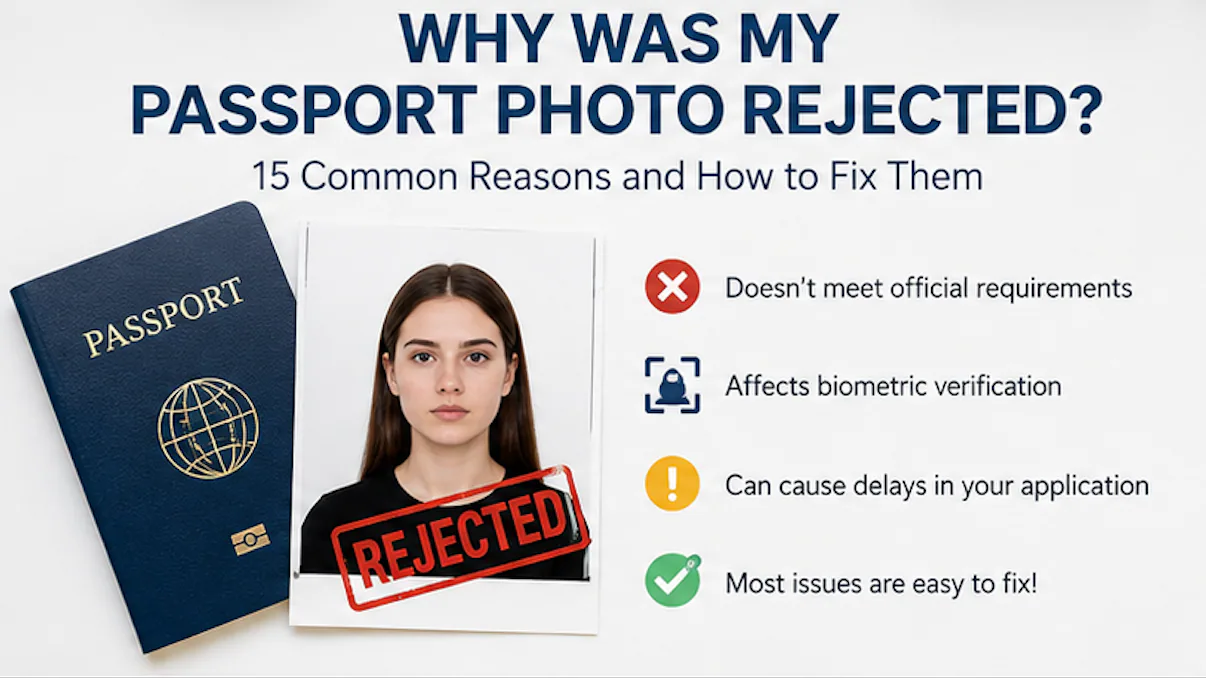
Last verified against current U.S. passport photo guidance: September 28, 2026
Receiving a passport photo rejection can be frustrating—especially if you thought everything looked perfect. You carefully followed the instructions, took a clear picture, submitted your application, and then received a notice saying your photo didn't meet the requirements.
The good news is that you're not alone. Every year, thousands of passport applications are delayed because of photo issues. In most cases, the problem isn't your camera or your photography skills. It's usually a small detail that doesn't comply with the official passport photo requirements.
Modern passport authorities use both trained staff and biometric software to review every submitted photo. These systems check much more than whether your picture looks good. They analyze facial positioning, lighting, image quality, head size, background, and other technical details that help confirm your identity.
Fortunately, most passport photo problems are easy to fix once you understand what caused the rejection.
In this guide, we'll explain the most common reasons passport photos are rejected, show you how to avoid these mistakes, and share practical tips to improve your chances of having your next photo accepted the first time.
Quick Answer
Passport photos are most commonly rejected because they don't meet official biometric or technical requirements. The most frequent problems include:
- Incorrect background
- Poor lighting
- Blurry or low-quality images
- Incorrect head size
- Looking away from the camera
- Smiling or exaggerated facial expressions
- Wearing glasses that create glare
- Hair covering facial features
- Incorrect cropping
- Digital editing or beauty filters
The good news is that nearly all of these issues can be corrected before you submit your application again.
If you prefer to prepare the file online, the US passport photo maker can help check the crop, background, and passport-photo format before submission.
Why Do Passport Photos Get Rejected?
Many people assume passport officers are judging whether a photo "looks professional." In reality, that's not the goal.
Passport photos are designed for identity verification, not personal appearance.
Government agencies use standardized photo requirements so that biometric systems can accurately compare your passport photo with your face at airports, border crossings, and immigration checkpoints.
Today, passport standards published by the International Civil Aviation Organization (ICAO) are used by 193 Member States, making biometric consistency one of the most important factors during passport photo review. Rather than evaluating how attractive a photo looks, reviewers focus on whether facial features can be measured accurately and consistently.
Even small inconsistencies can reduce the accuracy of facial recognition software. That's why governments have strict rules about background color, lighting, facial expression, image quality, and positioning.
A rejection doesn't necessarily mean your photo looks bad—it simply means one or more technical requirements weren't met.
Data Insight
Modern biometric verification compares facial geometry rather than visual appearance. A photo can look perfectly acceptable to the human eye but still fail automated compliance checks if important facial landmarks cannot be measured consistently.
How Passport Photos Are Evaluated
Most passport applications go through multiple stages of photo verification.
Depending on the country, your image may be reviewed by:
- Automated biometric software
- Image quality detection systems
- Passport processing officers
- Manual quality inspectors
These checks typically evaluate:
- Image sharpness
- Background consistency
- Facial visibility
- Head size
- Eye position
- Lighting
- Color accuracy
- Digital manipulation
- File quality
- Compliance with official passport specifications
Many modern verification systems automatically perform 10–20 separate image quality checks before a passport application reaches a human reviewer. While the exact process varies by country, automated screening helps identify common technical issues long before the passport is printed.
Typical Automated Passport Photo Checks
| Automated Check | Purpose |
|---|---|
| Face Detection | Locate the subject |
| Background Analysis | Detect patterns or uneven colors |
| Eye Visibility | Confirm both eyes are visible |
| Head Position | Measure facial alignment |
| Blur Detection | Evaluate image sharpness |
| Shadow Detection | Identify heavy facial shadows |
| Resolution Check | Verify image quality |
| Crop Validation | Confirm correct framing |
| Digital Manipulation Detection | Identify excessive editing |
| Country-Specific Rules | Apply official specifications |
Did You Know?
Many computer vision systems used for identity verification analyze between 68 and 468 facial landmarks, depending on the underlying algorithm. These landmarks help software calculate facial geometry for biometric matching.
If any of these elements fall outside the accepted standards, your application may be delayed until you provide a new photo.
15 Common Reasons Passport Photos Are Rejected
1. The Background Doesn't Meet the Requirements
This is one of the most common reasons passport photos are rejected.
A US passport photo maker can apply these dimensions and formatting checks to the uploaded photo.
Many applicants use a wall that appears white at first glance, only to discover that it contains subtle patterns, shadows, or color variations that become obvious during review.
Your background should generally be:
- Plain white or off-white
- Evenly lit
- Free from objects and decorations
- Free from visible shadows
- Free from other people
Standing slightly away from the wall often helps reduce shadows while keeping the background clean.
How to Fix It
Choose a plain wall with even lighting. If you're taking the photo at home, inspect the image carefully on a larger screen before submitting it.
Expert Tip
Computer vision software evaluates background uniformity rather than simply detecting the color white. Even slight gradients, textured paint, or visible shadows can interfere with automatic subject separation.
2. Poor Lighting Creates Shadows
Lighting problems account for a significant number of rejected passport photos.
Strong shadows under your eyes, nose, or chin can make facial features difficult for biometric systems to detect accurately.
Likewise, photos that are too bright or too dark may fail image quality checks.
Common Lighting Mistakes
- Direct sunlight
- Camera flash
- Ceiling lights only
- Mixed indoor and outdoor lighting
- Backlighting from windows
How to Fix It
Use soft natural daylight whenever possible. Facing a large window usually produces the most even illumination across your face.
If you must use artificial lighting, position two matching light sources in front of you rather than relying on a single overhead light.
Data Insight
Indoor portrait photography typically produces the best results at approximately 500–1,000 lux with a daylight color temperature close to 5,500 K, helping maintain natural skin tones without harsh shadows.
3. Your Photo Is Blurry or Low Resolution
A passport photo must clearly show every important facial feature.
Even slight motion blur can make eyelashes, eyebrows, and eye contours appear soft, reducing the effectiveness of facial recognition systems.
Low-quality images are often caused by:
- Camera movement
- Poor focus
- Heavy image compression
- Screenshots
- Images downloaded from social media
How to Fix It
Use your phone's rear camera instead of the selfie camera, clean the camera lens, and capture several photos before selecting the sharpest one. On Samsung, Pixel, Xiaomi, and OnePlus devices, check the Android passport photo camera settings before retaking the image.
Always keep the original high-resolution image rather than sending it through messaging apps that compress image quality.
Did You Know?
Rear smartphone cameras typically offer 2–4× more image detail than front-facing selfie cameras because they use larger image sensors and higher-quality lenses.
Expert Tip
Before uploading your image, zoom to approximately 300% on a desktop or laptop screen. If eyelashes, eyebrows, or facial edges appear soft, retake the photo rather than relying on image sharpening.
4. Your Head Is Too Large or Too Small
Many applicants don't realize that passport photos require more than the correct print size.
Governments also specify how large your head should appear within the image.
If your head occupies too much or too little of the frame, the photo may fail biometric measurements even if everything else looks correct.
How to Fix It
Avoid cropping the image manually unless you know the official specifications for your country.
Using a passport photo tool that automatically adjusts head size and crop is usually more accurate than estimating by eye.
Data Insight
Automated passport photo software measures the relationship between your head, eyes, shoulders, and image borders simultaneously—not just the overall photo size.
5. You're Not Looking Straight at the Camera
Facial recognition systems work best when your face is positioned directly toward the camera.
Even a slight turn of the head can affect the distance between facial landmarks, reducing biometric accuracy.
Common Positioning Mistakes
- Tilting the head
- Looking slightly left or right
- Raising the chin
- Looking downward
- Turning the shoulders too far
How to Fix It
Stand naturally with your shoulders square to the camera, keep your head upright, and look directly into the lens.
Did You Know?
Facial recognition algorithms compare dozens—or sometimes hundreds—of facial reference points. Even subtle head rotation can change the relative position of these landmarks and reduce matching consistency.
6. You're Smiling Too Much or Making an Expression
Many applicants are surprised to learn that smiling can cause a passport photo to be rejected. While a slight, natural expression is acceptable in many countries, a broad smile can change the shape of your face and make biometric comparisons less reliable.
Facial recognition systems analyze fixed facial landmarks, including the distance between your eyes, nose, mouth, and jawline. A wide smile can alter these measurements enough to reduce matching accuracy.
Common Expression Mistakes
- Smiling with teeth visible
- Laughing
- Raising your eyebrows dramatically
- Squinting
- Puffing your cheeks
How to Fix It
Relax your face, keep your mouth closed, and look directly into the camera. Think of maintaining a calm, natural expression rather than trying to look serious.
7. Your Glasses Are Causing Problems
Glasses are another frequent reason passport photos are rejected.
Even clear prescription lenses can create reflections that hide your eyes or interfere with facial recognition software. Thick frames may also obscure important facial features.
Common problems include:
- Glare on the lenses
- Reflections from windows or lights
- Frames covering the eyes or eyebrows
- Tinted lenses
- Sunglasses
How to Fix It
If your country's passport authority allows it, remove your glasses before taking the photo. If glasses are required for medical reasons, ensure there is no glare and that your eyes remain completely visible.
8. Your Hair Covers Part of Your Face
Your hairstyle doesn't need to change for a passport photo, but your facial features must remain clearly visible.
Long bangs, loose curls, or wind-blown hair can cover the eyes, eyebrows, or cheeks, making biometric identification more difficult.
Common Hair-Related Issues
- Hair covering one eye
- Bangs hiding the eyebrows
- Loose strands across the face
- Large hairstyles casting shadows
How to Fix It
Brush your hair away from your face before taking the picture. The goal isn't a particular hairstyle—it's making sure your face is fully visible.
Expert Tip
Review your final photo on a display that's 13 inches or larger whenever possible. Small phone screens often make it difficult to spot stray hairs, minor shadows, or subtle focus issues before submission.
9. You're Wearing Prohibited Accessories
Accessories that distract from or hide your face can prevent your photo from meeting official standards.
Examples include:
- Fashion hats
- Baseball caps
- Large headphones
- Costume accessories
- Face coverings that are not medically or religiously required
Small earrings and simple necklaces are usually acceptable because they don't interfere with facial recognition.
How to Fix It
Remove unnecessary accessories before taking your photo. If you wear religious head coverings or medical devices, check your country's official passport guidance.
Data Insight
The ICAO Doc 9303 standard emphasizes that permanent facial features should remain clearly visible for biometric comparison. Covering key facial regions—including the eyes, nose, mouth, or facial outline—can reduce the effectiveness of automated identity verification.
10. Your Clothing Blends Into the Background
Although clothing rarely causes rejection on its own, it can contribute to problems if it reduces the contrast between your face and the background.
For example, wearing a white shirt against a white background can make your shoulders appear to blend into the image.
How to Fix It
Choose simple clothing in a medium or dark solid color. Avoid camouflage patterns, uniforms, or clothing with large logos that draw attention away from your face.
Did You Know?
Computer vision software separates the subject from the background before evaluating facial features. The Web Content Accessibility Guidelines (WCAG) recommend a minimum 4.5:1 contrast ratio for clear visual distinction in many digital applications.
11. The Photo Is Cropped Incorrectly
Cropping is one of the easiest mistakes to make when editing a passport photo manually.
If the crop is too tight, part of your head or shoulders may be cut off. If it's too loose, your head may appear too small for the required specifications.
Common Cropping Errors
- Head too close to the top edge
- Shoulders cropped unevenly
- Too much empty space around the subject
- Face positioned off-center
How to Fix It
Whenever possible, use software designed specifically for passport photos. These tools automatically position your face according to the required dimensions for your selected country.
Data Insight
Google's ML Kit Face Detection framework can recognize faces occupying approximately 10% or more of an image. Passport photo validation systems use similar face-detection principles before checking crop accuracy and facial positioning.
12. The Photo Doesn't Meet Technical Image Requirements
Different countries publish different technical requirements for digital passport photos.
Instead of checking only the physical dimensions, many online application systems also validate:
- File format
- Image dimensions
- Aspect ratio
- Compression quality
- Embedded metadata
- Upload compatibility
How to Fix It
Always verify the official upload requirements for your passport authority instead of assuming one digital image works everywhere.
13. Beauty Filters or AI Editing Changed Your Appearance
Modern smartphones often apply image enhancement automatically—even when users don't intentionally edit their photos.
These features may include:
- Skin smoothing
- Face slimming
- Eye enlargement
- Portrait blur
- AI beauty enhancement
While these effects may improve a casual portrait, they can alter important biometric features used during identity verification.
How to Fix It
Turn off beauty mode, portrait effects, and AI enhancement before taking the photo. Your passport photo should reflect your natural appearance rather than an edited version of yourself.
Data Insight
Facial recognition systems compare stable facial geometry rather than cosmetic appearance. Artificial smoothing, reshaping, or enhancement may subtly change facial texture or contours, making the image less suitable for biometric matching.
14. The Photo Is Too Old
Passport photos should accurately represent how you look today.
Using an older image may lead to rejection if your appearance has changed significantly due to age, hairstyle, facial hair, weight changes, or other noticeable differences.
Many passport authorities also require applicants to submit a recent photograph to improve identity verification.
How to Fix It
Take a new photo before submitting your application, even if you have an older passport photo that you like. A current image reduces the risk of delays and helps ensure smooth identity verification.
15. The Digital File Doesn't Meet Technical Requirements
For online passport applications, the digital file itself must meet technical specifications.
Common issues include:
- Incorrect file format
- File size exceeding the maximum limit
- Image dimensions below the minimum requirement
- Excessive compression
- Damaged or corrupted files
How to Fix It
Export the image in the format specified by the passport authority—most commonly JPEG—and confirm that the file size and pixel dimensions match the official requirements before uploading.
Avoid repeatedly saving and re-exporting the same image, as each compression cycle may reduce fine facial detail.
Passport Photo Rejection Facts
| Technical Standard | Why It Matters |
|---|---|
| 193 ICAO Member States | Common biometric passport framework |
| 68–468 Facial Landmarks | Facial recognition algorithms analyze key facial geometry |
| 4.5:1 Contrast Ratio | Helps distinguish subjects from backgrounds (WCAG benchmark) |
| 10% Minimum Face Size | Reference threshold used by Google ML Kit face detection |
| ISO/IEC 10918 | International JPEG image standard |
| sRGB (IEC 61966-2-1) | Standard digital color space for consistent image display |
How to Fix a Rejected Passport Photo
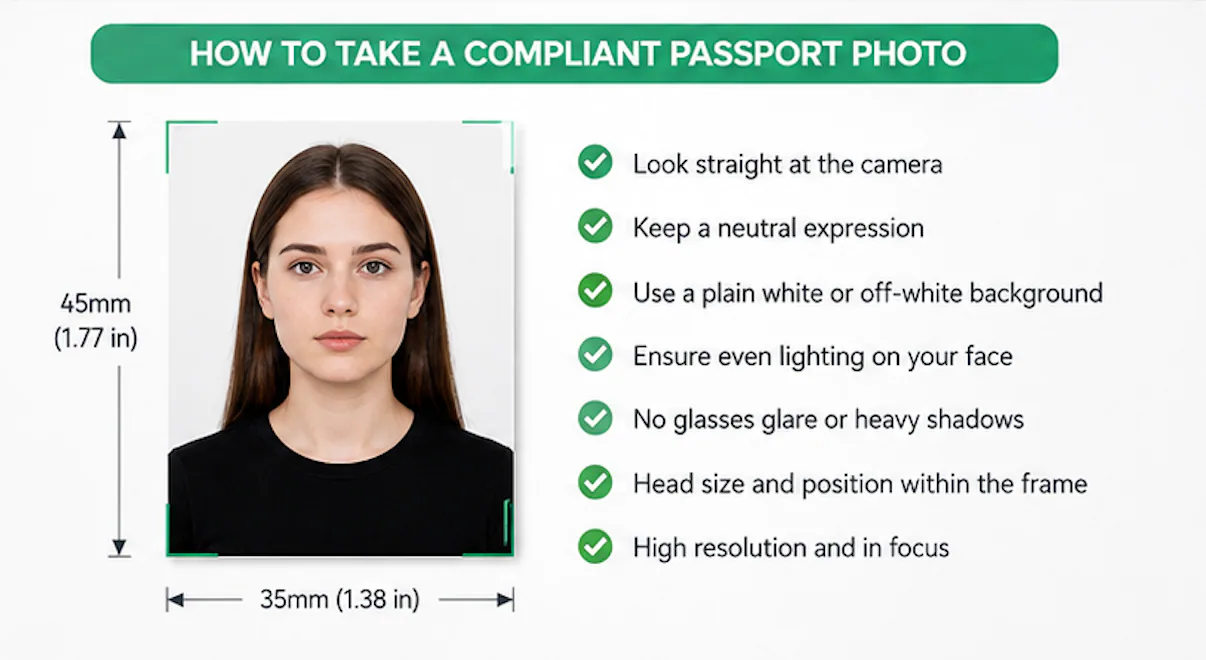
Receiving a passport photo rejection notice doesn't necessarily mean you need to start the entire application process again. In many cases, you'll simply be asked to submit a replacement photo that meets the official requirements.
The key is to identify exactly why the previous image failed. Instead of guessing, compare the rejection notice with your country's official passport photo requirements and correct only the issues that were identified.
Following a structured review process before taking another photo can save time and reduce the likelihood of another rejection.
Step-by-Step Recovery Process
| Step | What to Do | Why It Matters |
|---|---|---|
| 1 | Read the rejection notice carefully | Identify the exact compliance issue. |
| 2 | Compare it with the official passport photo requirements | Confirm which requirement wasn't met. |
| 3 | Retake the photo if necessary | Many issues cannot be fixed through editing. |
| 4 | Review the new photo on a larger screen | Small defects are easier to spot. |
| 5 | Check image quality, lighting, background, and crop | Verify all common rejection points. |
| 6 | Submit the corrected image | Reduce the chance of another delay. |
Passport Photo Rejection Checklist
Before uploading or printing your new passport photo, take one final minute to review every detail.
Background
✔ Plain white or off-white ✔ No visible objects ✔ No texture or patterns ✔ No shadows
Lighting
✔ Even lighting across the face ✔ No flash reflections ✔ No harsh shadows ✔ Natural skin tones
Face
✔ Looking directly at the camera ✔ Neutral expression ✔ Mouth closed ✔ Eyes fully visible ✔ Hair away from the eyes
Composition
✔ Head centered ✔ Correct crop ✔ Shoulders visible ✔ Correct dimensions
Image Quality
✔ Sharp focus ✔ High resolution ✔ Original image ✔ No beauty filters ✔ No AI enhancement ✔ Correct file format
Data Insight
Most passport authorities evaluate multiple technical factors simultaneously, including facial visibility, image quality, lighting, background, cropping, and digital file specifications. A photo may satisfy one requirement while still failing another.
How PhotoOmni Helps You Avoid Passport Photo Rejection
Understanding the passport photo requirements is only part of the process. The next step is making sure your image complies with those requirements before you submit your application.
That's where PhotoOmni helps.
Rather than simply resizing your photo, PhotoOmni performs a structured compliance review designed to identify many of the issues that commonly lead to passport photo rejection.
PhotoOmni Compliance Workflow
| Compliance Stage | Purpose |
|---|---|
| Face Detection | Locate the primary subject accurately. |
| Facial Landmark Analysis | Verify facial positioning and proportions. |
| Background Inspection | Detect patterns, uneven lighting, or distracting objects. |
| Lighting Evaluation | Identify shadows, glare, and overexposure. |
| Image Sharpness Assessment | Detect blur and focus issues. |
| Crop Validation | Confirm proper framing and head positioning. |
| Resolution Verification | Check image quality for digital submission. |
| Country Rule Matching | Apply passport photo specifications for the selected country. |
| AI Compliance Review | Identify common technical compliance risks. |
| Human Expert Review | Final manual quality inspection before delivery. |
Unlike general photo-editing apps, PhotoOmni is designed specifically for passport, visa, residence permit, and ID photo preparation.
Instead of enhancing your appearance, the goal is to help you produce an image that accurately represents you while complying with official passport photo requirements.
Why This Matters
Many rejected passport photos look perfectly acceptable to the human eye.
However, passport authorities evaluate images using both trained reviewers and automated biometric systems that measure facial geometry, image quality, and technical compliance.
By checking these factors before submission, you can reduce the likelihood of avoidable mistakes and improve the chances of first-time acceptance.
Frequently Asked Questions
Why was my passport photo rejected even though it looked fine?
Many passport photo rejections are caused by technical issues that aren't immediately visible, such as incorrect head positioning, uneven lighting, poor image quality, background inconsistencies, or incorrect cropping. A photo can appear perfectly acceptable while still failing biometric validation.
Can I use the same passport photo after it has been rejected?
That depends on the reason for the rejection. If the issue involves lighting, background, blur, or composition, it's generally better to take a new photo rather than attempting to edit the existing one.
Can I edit my rejected passport photo?
Basic adjustments such as cropping may be acceptable if they don't alter your appearance. However, beauty filters, skin smoothing, facial reshaping, portrait effects, or AI enhancement should not be used because they may affect biometric verification.
Can AI tell me why my passport photo was rejected?
AI can detect many common compliance issues, including incorrect cropping, poor lighting, background problems, image quality, and facial positioning. However, the final acceptance decision always belongs to the passport authority processing your application.
How can I reduce the chance of my passport photo being rejected?
The best approach is to review your image carefully before submitting it. Make sure the background is plain and evenly lit, your face is centered, the image is sharp, your expression is neutral, and the photo meets your country's official passport photo requirements.
Can smartphone cameras take acceptable passport photos?
Yes. Modern smartphones are capable of producing high-quality passport photos when used correctly. Success depends far more on proper lighting, background, composition, and compliance with official requirements than on the camera itself.
Final Thoughts
A rejected passport photo is usually caused by small issues such as incorrect lighting, background, facial positioning, image quality, or photo dimensions. Reviewing your image against your country's official passport photo requirements before submitting your passport application can greatly improve the chances of first-time approval.
For added confidence, PhotoOmni can analyze your passport photo against country-specific requirements, identify common compliance issues, and help ensure it meets official standards. Taking a few extra minutes to check your photo can help you avoid delays, extra costs, and the need to resubmit your passport application.
About the Author
Emma Richardson Senior ICAO Photo Compliance Expert, PhotoOmni
Emma Richardson is the Senior ICAO Photo Compliance Expert at PhotoOmni. With 12+ years of experience, she has helped applicants achieve 820,000+ successful passport and visa photo approvals across 100+ countries and territories. She specializes in global passport photo requirements and ICAO-compliant photo verification.