
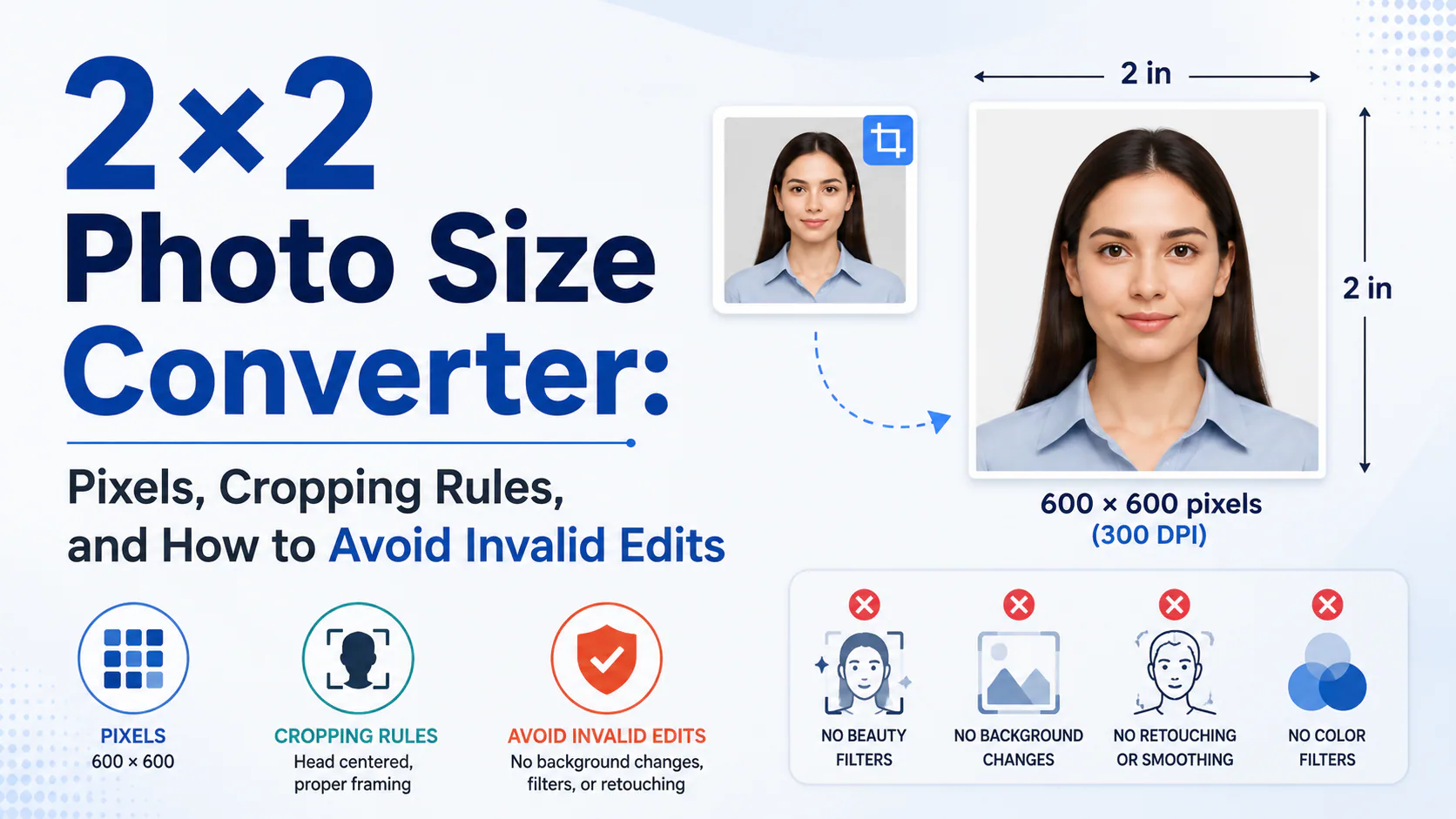
2×2 Photo Size Converter: Pixels, Cropping Rules, and How to Avoid Invalid Edits
A 2×2 inch photo (51×51mm) converts to 600×600 pixels at 300 DPI, or 1200×1200 pixels at 600 DPI — the two most common targets, with some US digital portals accepting anything in that range and others wanting an exact match. But pixel count isn't where most "invalid edit" rejections come from. The m
Content and product links checked: September 28, 2026
2×2 Photo Size Converter: Pixels, Cropping Rules, and How to Avoid Invalid Edits
If you prefer to prepare the file online, the US passport photo maker can help check the crop, background, and passport-photo format before submission.
A photo can look perfectly square, perfectly cropped, and still fail — because of something in the file you can't see by looking at it.
Quick answer: A 2×2 inch photo (51×51mm) converts to 600×600 pixels at 300 DPI, or 1200×1200 pixels at 600 DPI — the two most common targets, with some US digital portals accepting anything in that range and others wanting an exact match. But pixel count isn't where most "invalid edit" rejections come from. The more common failure is invisible: cropping software or privacy-focused editors that strip a photo's EXIF metadata, which silently breaks the color-space tag and rotation flag that automated validators specifically check for — producing a file that looks completely normal and still gets rejected on submission.
Ready to prepare the file? The PhotoOmni U.S. passport photo tool checks the crop, background, head position and output format, then provides a digital photo and print-ready sheet.
The pixel math, for reference
Pixels = inches × DPI. For a 2×2 inch photo:
| DPI | Pixels | Typical use |
|---|---|---|
| 300 | 600×600 | Standard print resolution, most common target |
| 600 | 1200×1200 | Upper bound many US digital portals accept |
| 72 | 144×144 | Screen preview only — far too low for submission |
Several US digital systems — passport renewal, visa applications, the DV Lottery — accept a range rather than one fixed number: typically 600×600 up to 1200×1200 pixels, all square. That range detail matters because it means the common advice "make it exactly 600×600" is stricter than necessary for some portals, while other systems enforce an exact match rather than a range. Confirm which kind of requirement your specific portal uses before assuming either extreme is safe.
The cropping precision most people don't realize matters
An automated image validator doesn't eyeball whether your photo "looks square" — it checks the exact pixel dimensions against a tolerance. An 800×801 pixel image is visually indistinguishable from a perfect square, and it will still fail an aspect-ratio check that some portals enforce strictly. This is worth knowing because manual cropping in a generic photo editor — dragging a selection box by eye, then reading off "close enough" numbers — routinely produces exactly this kind of off-by-one-pixel result. If you're cropping manually rather than using a tool that locks the aspect ratio, double-check the final pixel dimensions numerically rather than trusting how the crop looks on screen.
The edits that invalidate a photo without changing how it looks
This is the part almost no size-conversion guide covers, and it's where most "why was my technically-correct-looking photo rejected" cases actually come from:
A US passport photo maker can apply these dimensions and formatting checks to the uploaded photo.
Stripped EXIF metadata. Automated validators — including the US State Department's — check for intact EXIF metadata as part of the compliance process. Photo editing tools, compression tools, and privacy-focused apps often strip this metadata automatically, either to reduce file size or to remove identifying information. When that happens, the file loses two things a validator specifically looks for: the sRGB ICC color-space profile tag (its absence can trigger a color-space rejection, even though the colors look completely normal to your eye) and the EXIF rotation flag (its absence can cause the system to interpret the image as rotated, even though it displays upright everywhere you look at it). Neither of these is visible in the image itself — you'd have to check the file's metadata directly to know it happened.
Over-scanning a printed photo. If you're converting an existing printed 2×2 photo back into a digital file by scanning it, scanning above 600 DPI produces a pixel count that exceeds the 1200×1200 maximum many portals enforce — an oversized file caused by using too much resolution, which is a less intuitive failure mode than the usual "too small" problem.
Mixing requirements across programs. A passport renewal, a visa application, and the DV Lottery can each apply slightly different file-size or pixel-range rules even though all three nominally use the "2×2 inch" standard. A file prepared correctly for one can fail another's specific validator.
Beauty filters, artificial sharpening, and heavy re-compression. These don't just risk looking like alteration to a human reviewer — repeated saves and compression passes can visibly soften detail in ways that read as image manipulation to an automated check, separate from whether a person would notice.
How to avoid all of this in practice
The common thread across every failure mode above is that none of them are visible by looking at the photo — you need a tool that checks the file itself, not just the crop. PhotoOmni's photo tool handles the pixel-exact crop and preserves the metadata a validator checks for, rather than relying on a generic image editor that may strip EXIF data as a side effect of resizing or compressing the file. If you've already edited a photo elsewhere, it's worth running it through a compliance check before submitting — since a metadata problem specifically won't show up in a visual preview, only in a check that actually inspects the file.
How to avoid all of this in practice
The common thread across every failure mode above is that none of them are visible by looking at the photo — you need a tool that checks the file itself, not just the crop. PhotoOmni's photo tool handles the pixel-exact crop and preserves the metadata a validator checks for, rather than relying on a generic image editor that may strip EXIF data as a side effect of resizing or compressing the file. If you've already edited a photo elsewhere, it's worth running it through a compliance check before submitting — since a metadata problem specifically won't show up in a visual preview, only in a check that actually inspects the file.
Free 2×2 photo converter vs. a real 2×2 photo editor: what actually differs
Search "2×2 photo converter free" or "convert photo to 2×2 passport free" and you'll get plenty of results that will genuinely crop and resize an image to 600×600 pixels at no cost. That part of the job is easy enough that free tools handle it fine. What separates a basic converter from an actual 2×2 photo editor built for this specific use case is everything covered above: whether the tool preserves EXIF metadata during export, whether it locks the exact pixel count rather than rounding to "close enough," and whether it accounts for which program's range or exact-match rule applies. If you just need to create a 2×2 photo for a non-official use — a print, a personal ID mockup — a free converter is fine. If the file is going to an automated government validator, the metadata and pixel-precision details matter more than the price tag does.
FAQ
What is 2×2 inches in pixels? 600×600 pixels at 300 DPI, or 1200×1200 pixels at 600 DPI. Some US digital portals accept anything in that range; others require an exact match — check your specific application's stated requirement.
Is there a free way to create a 2×2 photo? Yes — basic cropping and resizing to 600×600 pixels is a solved problem that most free 2×2 photo converter tools handle without issue. Where free tools vary is on the details that matter for official submissions specifically: EXIF metadata preservation and exact pixel-count locking, covered above.
What's the difference between a 2×2 photo converter and a 2 by 2 photo editor? In practice, not much — both terms describe the same task of resizing and cropping an image to the 2×2 inch standard. The meaningful difference isn't in the name, it's in whether the specific tool preserves file metadata and locks exact pixel dimensions, which a basic converter may not do.
Can stripping metadata from a photo cause it to be rejected? Yes. Some automated validators, including the US State Department's, check for intact EXIF metadata. Removing it — which many editing and compression tools do automatically — can trigger a color-space rejection or an apparent-rotation error, even though the photo looks completely normal.
Why would a photo that looks perfectly square still fail? Automated systems check exact pixel dimensions, not visual appearance. An image that's 800×801 pixels looks identical to a perfect square but can fail a strict aspect-ratio check that a human reviewer would never catch by eye.
Is it possible to scan a printed photo at too high a resolution? Yes — scanning a 2×2 inch print above 600 DPI produces a pixel count that can exceed the 1200×1200 maximum many portals enforce, which is a less obvious failure mode than the usual too-small-resolution problem.
How can I check if my photo has an invisible metadata problem? Visual inspection won't catch it — you need a tool that reads the file's actual metadata. Running the photo through a dedicated compliance check before submitting is the reliable way to catch this, since the issue doesn't show up in a normal preview.
Pixel and file requirements vary by specific portal and can change — always confirm current specs with the issuing authority before submitting.
About the Author
PhotoOmni Editorial Team
The PhotoOmni Editorial Team researches official passport, visa, immigration, and identity-photo requirements. Every guide is reviewed for practical accuracy and updated when application rules, upload specifications, or government guidance change.