
Passport Photo Sizer: How to Resize a Photo Without Getting Rejected
Learn why correct outer dimensions are not enough and how head size, framing, resolution, and file size affect passport photo acceptance.
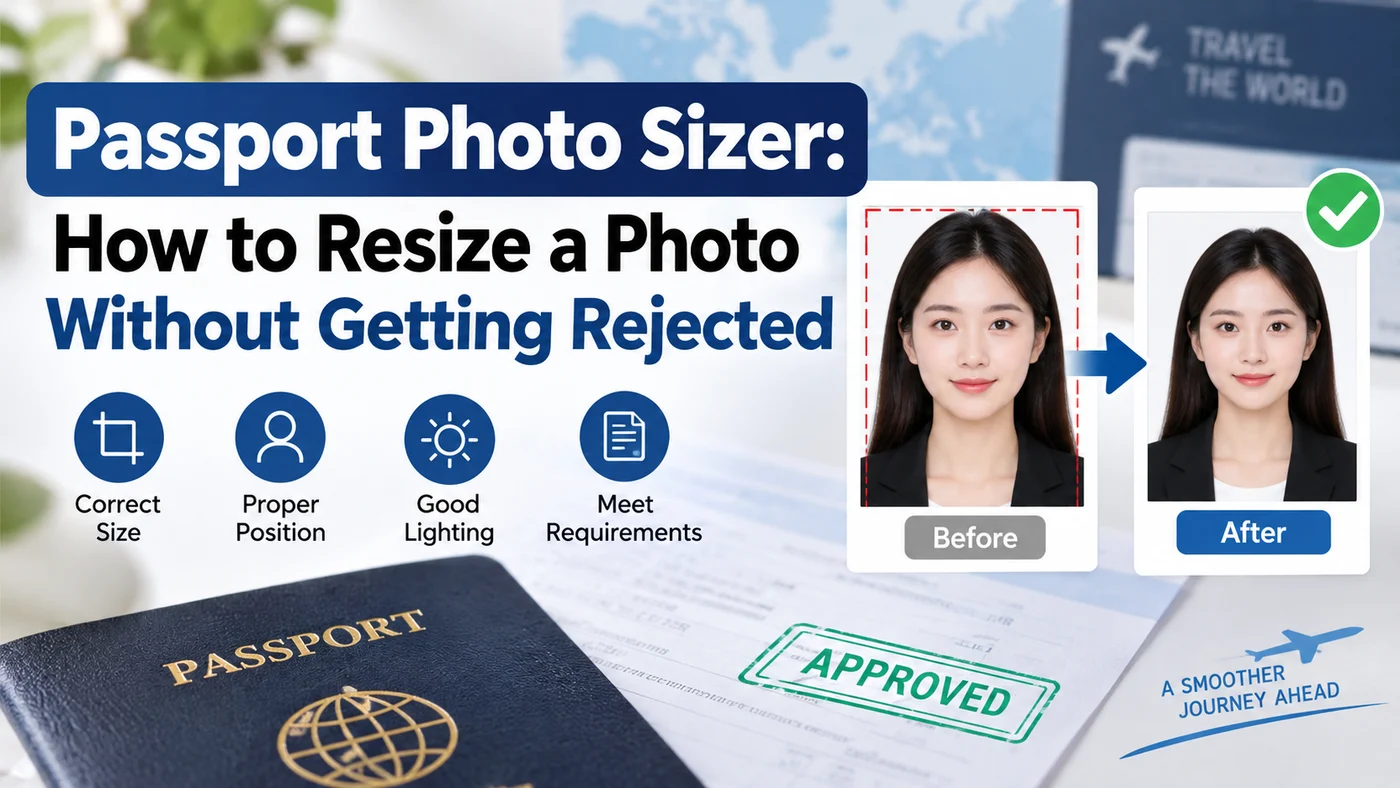
Quick answer: Resizing a photo to the correct passport dimensions (2×2 inches / 51×51mm for the U.S., with country-specific variations elsewhere) is only the first of three things that actually matter — the other two, which most basic "resizer" tools skip, are head-size proportion (your head must fill 50–69% of the frame height, not just the overall photo being the right dimensions) and resolution/file size limits for digital uploads. A photo can be perfectly cropped to 2×2 inches and still get rejected because the head inside that frame is too small, too large, or off-center.
If you prefer to prepare the file online, the US passport photo maker can help check the crop, background, and passport-photo format before submission.
Why a Basic Crop Tool Isn't Enough
Most free "passport photo sizer" tools online do exactly one thing: crop or resize an image to a fixed pixel dimension. That solves the outer dimension problem but ignores the part that actually causes most resize-related rejections — where your head sits within that frame. A photo cropped to exactly 2×2 inches with your head taking up only 30% of the frame (too much background) or 85% of the frame (too tight, chin or crown cut off) will still fail, even though the outer dimensions are technically correct.
The Three Things a Proper Resize Needs to Get Right
1. Outer dimensions. For a U.S. passport: 2×2 inches (51×51mm), or 600×600 to 1200×1200 pixels for digital submission. Other countries vary — the UK and most EU countries use 35×45mm, Canada uses 50×70mm — so confirm the destination country's spec before resizing, not after.
2. Head-size ratio within the frame. The head, measured from chin to crown, needs to fall within a specific range — roughly 1 to 1⅜ inches (25–35mm) for the U.S., or 50–69% of the total image height. This is the step a simple crop tool doesn't calculate automatically; it requires actually identifying where your chin and the top of your head are in the image and cropping proportionally around that, not just cropping to the outer square.
3. Resolution and file size, for digital uploads. If you're submitting digitally rather than printing, most systems specify a resolution range (commonly 600×600 to 1200×1200 pixels) and a maximum file size (often under 10MB, sometimes with a minimum like 50KB to avoid overly compressed images). A photo resized only for print dimensions can still fail a digital upload if the pixel resolution or file size falls outside these bounds.
Common Resizing Mistakes
- Resizing by dragging corners in a general image editor, which stretches or distorts proportions rather than cropping to the correct head-size ratio
- Cropping to the outer square first, then discovering the head size is wrong — the head-size ratio should be measured before finalizing the crop, not checked afterward
- Ignoring DPI/resolution settings when printing — a photo resized correctly in pixel dimensions can still print at the wrong physical size if the DPI (dots per inch) setting isn't also set correctly, commonly 300 DPI for U.S. passport photos
- Resizing a photo that was never compliant to begin with — no amount of correct cropping fixes a photo with the wrong background, an off-center head, or a non-neutral expression; resizing only solves the dimension problem, not the content problem
Country-Specific Sizing at a Glance
| Country | Printed Size | Head Height |
|---|---|---|
| United States | 2 × 2 in (51 × 51 mm) | 1–1⅜ in (25–35mm) |
| United Kingdom / most EU | 35 × 45 mm | 29–34mm (varies slightly by country) |
| Canada | 50 × 70 mm | 31–36mm |
| Malaysia | 35 × 50 mm | 25–30mm |
Resizing a photo correctly for one country's spec does not automatically make it correct for another — a photo cropped to UK dimensions won't be the right proportions for a U.S. application even if you resize the outer frame to match, because the head-height ratio differs.
A Resizer That Also Checks Compliance
Since correct sizing depends on identifying your head's position accurately — not just cropping to an outer rectangle — an automated tool that does both the resize and the compliance check in one step avoids the gap that separate "resizer" tools leave open. PhotoOmni resizes an uploaded photo to the correct dimensions for your destination country while also checking head-size ratio, background, and framing, so a photo that passes isn't just the right outer size — it's actually structured correctly inside that frame.
FAQ
Can I resize a passport photo myself in a free tool like Canva or Photoshop? Yes, technically — but you need to know the exact head-height ratio for your destination country and crop around that measurement specifically, not just resize to the outer dimensions, which is where most self-resized photos go wrong.
What DPI should I use when printing a resized passport photo? 300 DPI is the standard reference for most U.S. passport photo printing; other countries sometimes specify their own resolution standards, so confirm before printing if you're outside the U.S.
Does resizing an existing photo fix issues with background or lighting? No — resizing only changes the crop and dimensions. Background color, lighting, shadows, and expression all need to be correct in the original photo before resizing; cropping alone can't fix those issues.
Is there a difference between resizing for print versus resizing for digital upload? Yes — print resizing focuses on physical dimensions and DPI, while digital upload resizing focuses on pixel dimensions and file size limits; a photo prepared for one isn't automatically ready for the other without adjustment.
Bottom Line
Resizing a passport photo correctly is about more than fitting an outer rectangle — the head-size ratio inside that rectangle is what most basic sizer tools miss, and it's a common cause of rejection even when the outer dimensions look right. A tool like PhotoOmni that resizes and checks compliance together, rather than just cropping to a fixed size, is a more reliable way to get a photo that actually passes.
About the Author
PhotoOmni Editorial Team
The PhotoOmni Editorial Team researches official passport, visa, immigration, and identity-photo requirements. Every guide is reviewed for practical accuracy and updated when application rules, upload specifications, or government guidance change.