
Bulk Photo Resizer: How to Resize Photos in Bulk Online (and Why Passport Photos Need Care)
Resize photos in bulk without stretching faces. Compare resize settings, protect personal photos and keep passport upload limits in view.
Quick Answer
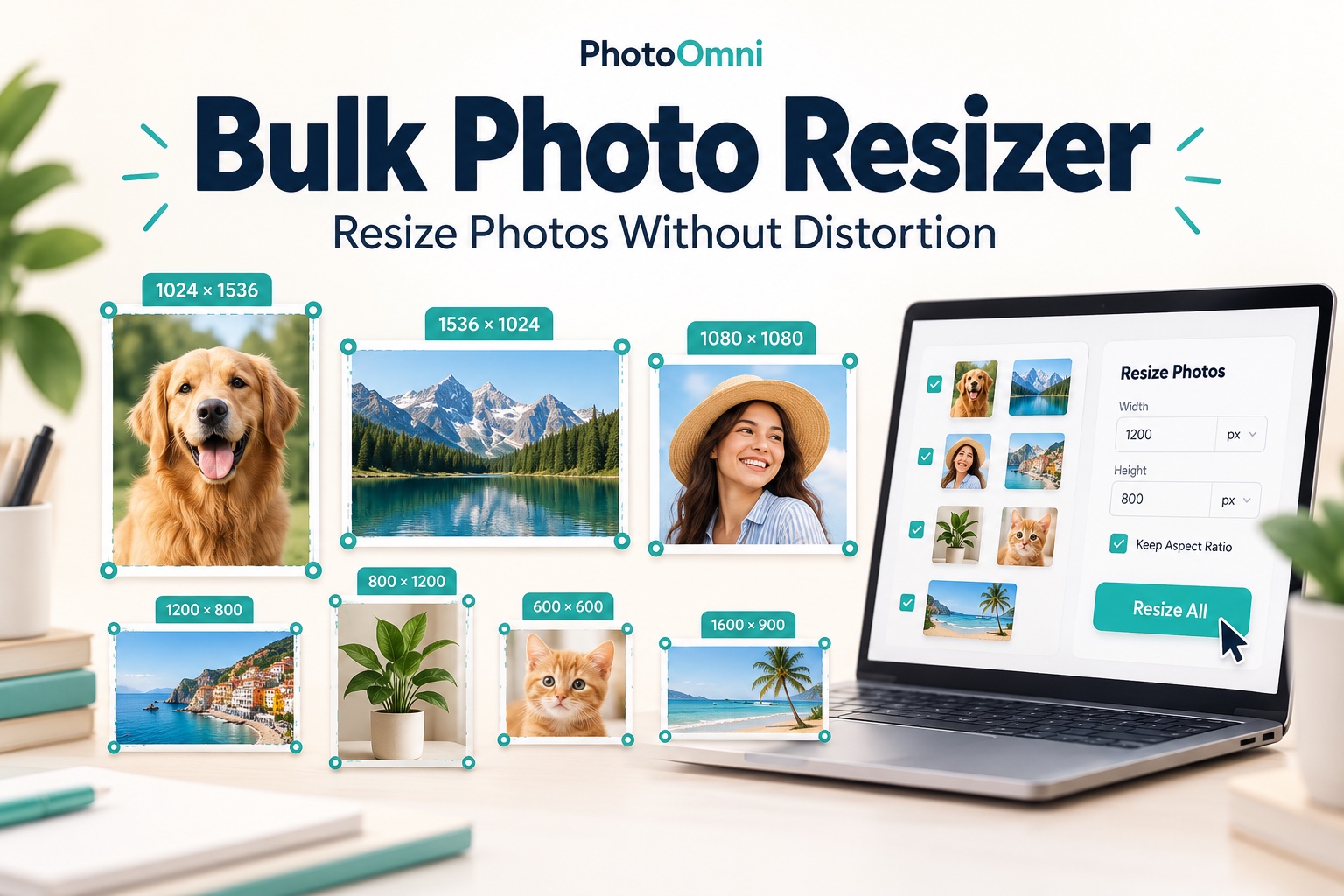
To resize photos in bulk online: add your images to a bulk resizer, choose one rule (exact pixels, a percentage, or a longest side), lock the aspect ratio, process the batch and download the results, usually as a ZIP. Tools differ on how many images they accept, whether files are uploaded to a server, and what they do when photos have different shapes.
For passport and ID photos, a bulk resizer is the wrong tool for the framing step. A passport photo is judged on head size, position, background and sharpness, and each person's photo is framed differently. A rule such as "stretch to 600 × 600" distorts faces, "crop to fill" can cut off heads, and "add padding" adds borders. Check each person’s photo individually. For U.S. online renewal and UK own-device uploads, retain the original framing and use the application’s crop tool; batch processing should be limited to necessary file-level steps. Also watch the numbers: a UK online upload needs at least 600 × 750 pixels, which is larger than a 35 × 45 mm print at 300 DPI, so bulk-resizing "to passport size" can push a photo below the minimum.
1. Why Guides Give Different Answers
Different limits. Batch limits vary by tool, file size and available device memory. The limit is not a standard, it is a product choice.
Local versus uploaded. Many tools state that processing happens in your browser and images never leave your device. Others upload files to a server and apply their own retention policy. Guides often recommend a tool without saying which kind it is.
Different units. Most bulk resizers think in pixels or percentages. Passport rules are written in millimetres or inches for prints and pixels for digital files, so "resize to passport size" means different things in different places.
What happens to photos with different shapes. Resizers offer keep aspect ratio, crop to fill, stretch to exact dimensions, or add padding. Resizing alone does not fix a photo shot at a different ratio: it either distorts the picture or leaves the ratio wrong. Product-photo guides recommend stretching or cropping to get a uniform grid, advice that does real harm to a face photo.
Bulk versus per-person. E-commerce guides assume every image needs the same treatment. Passport photos are the opposite: the same output rule produces a good photo for one person and a rejected one for another.
2. What Passport Photos Actually Require
| Rule | United States | United Kingdom |
|---|---|---|
| Printed size | 2 × 2 inches (51 × 51 mm), head 1 to 1⅜ inches | 45 × 35 mm, head 29 to 34 mm |
| Digital file | JPG, JPEG, PNG, HEIC or HEIF, 54 KB to 10 MB; you can reposition or crop in the application | At least 600 × 750 px, 50 KB to 10 MB; do not crop an own-device photo |
| Photos per application | 1 | 1 digital, or 2 identical prints on paper |
| Editing | Original and unedited, no filters or retouching | Unaltered by software |
| Background | Plain white or off-white | Plain light-coloured (digital); cream or light grey (print) |
The pixel trap
A print size converts to pixels with this formula: pixels = millimetres ÷ 25.4 × DPI.
- 2 inches at 300 DPI is 600 pixels, so a 2 × 2 inch print is 600 × 600 pixels.
- 35 × 45 mm at 300 DPI is about 413 × 531 pixels.
The UK digital rule asks for at least 600 × 750. A bulk job that resizes every UK photo to 413 × 531 "for passport size" produces a file below the upload minimum. For a UK online application, upload the original, uncropped photo and let the application crop it. Print sizing is for prints, and the digital minimum is a separate rule.
Common bulk resizer settings and what they do to a face photo
| Setting | Effect | Passport risk |
|---|---|---|
| Keep aspect ratio / lock ratio | Scales proportionally | Safe for size changes, but does not fix framing |
| Crop to fill | Fills the frame and may cut the outer edges | Can cut off hair, chin or shoulders |
| Stretch to exact dimensions | Forces the image into the target shape | Distorts the face |
| Add padding | Adds borders or bars | Introduces non-plain edges and wastes frame |
| Auto or content-aware crop | A tool decides what to keep | May crop in a way the rules do not allow |
3. A Bulk Workflow That Works for Passport Photos
This is for families, schools, employers and agencies who need many ID photos.
Step 1: Define what each document needs. Write down the print size or the digital limits for each document and country. Different people may need different specs.
Step 2: Standardise how the photos are taken. Use the same distance, camera height, lighting and plain background, and shoot at the standard resolution. Consistent capture makes later steps more repeatable, though not identical.
Step 3: Check each photo individually; frame only where the application permits it. Head size, position, eyes open and visible, shadows and expression need a look at every photo. This is the step bulk tools cannot do safely.
Step 4: Use bulk tools only for necessary file-level steps. After individual checks, batch processing can help with renaming and any format or size changes explicitly needed by the destination. For original-photo uploads, preserve the original and avoid unnecessary recompression. Keep the aspect ratio locked, and avoid stretch, padding and auto-crop. See our guides to converting a photo to JPG and compressing a photo.
Step 5: Verify every output. Open each file, check dimensions and file size, and zoom to 100% to confirm the face is sharp. For UK photos, follow the official digital-photo guidance and the application’s photo checks.
Step 6: Print sensibly. Several different people's photos can share one 4 × 6 inch print. Geometry allows six 2 × 2 inch photos on one sheet, and at least six 35 × 45 mm photos. Count what each person needs: one photo for a U.S. application, and two identical prints for a UK paper application.
Step 7: Protect identity data. A set of passport photos is sensitive. Prefer tools that process locally, delete files when finished, and do not leave a folder of ID photos on shared devices.
4. Cost and Time
| Method | Cost | Time |
|---|---|---|
| Bulk resizer for file-level steps | Often free | A few minutes per batch |
| Individual framing and checking | Your time, per person | A few minutes per person |
| PhotoOmni passport or visa photo, per person | See current pricing | Depends on the photo and review process |
5. Common Mistakes
- Using one resize rule for every person. Faces sit differently in each frame.
- Stretching photos to a fixed size, which distorts faces.
- Choosing "crop to fill", which can cut off the top of the head or shoulders.
- Adding padding and creating borders.
- Resizing UK photos to the print size in pixels and landing below 600 × 750.
- Cropping a UK own-device photo when the application crops it for you.
- Compressing below the minimum file size, such as 54 KB or 50 KB.
- Using a tool that uploads ID photos without reading its privacy terms.
- Skipping the individual check because the batch "looked fine."
- Letting a tool auto-enhance faces when the rules say the photo must be original or unaltered.
6. PhotoOmni vs Other Ways to Prepare Several Photos
| Method | Best for | Watch out for |
|---|---|---|
| Bulk resizer | File-level steps such as size range and renaming | Cannot judge framing, head size or background |
| Stores and booths | A staffed photo, one person at a time | Cost multiplies per person |
| PhotoOmni, for US passport, UK passport or UK visa photos | Preparing each person's passport or visa photo with an AI check and expert review, sized for the document you choose | No tool can guarantee acceptance |
Whatever tool you use, frame and check each person's photo individually. PhotoOmni describes its service as AI-checked and expert-verified, with a refund guarantee for photo-related rejection, so see the refund policy for terms. For phone shooting, see our Android passport photo guide, home passport photo guide and requirements guide.
7. Checklist Before You Process a Batch
- I know the exact spec for each document and country
- Every photo was taken in consistent, even light against a plain background
- I framed and checked each person's photo individually
- My bulk tool keeps aspect ratio locked, with no stretch, padding or auto-crop
- UK digital photos stay at least 600 × 750 px and uncropped
- Files stay within the size range, such as 54 KB or 50 KB to 10 MB
- I opened every output at 100% to check sharpness
- I checked UK photos with the official GOV.UK checker
- Each person has the right number of photos or prints
- My tool respects privacy, and I deleted the files afterwards
8. FAQ
How do I resize photos in bulk online? Add your images to a bulk resizer, choose exact pixels, a percentage or a longest side, lock the aspect ratio, process the batch, and download the results as a ZIP.
Can I use a bulk resizer for passport photos? Only for file-level steps after each photo has been framed individually. Passport photos are judged on head size, position and background, which a one-size-fits-all resize cannot handle.
What size should I resize a passport photo to? It depends on the document. A 2 × 2 inch U.S. print is 600 × 600 pixels at 300 DPI, but U.S. online renewal sets file type and size limits rather than pixel dimensions. A UK online upload needs at least 600 × 750 pixels.
Why was my UK passport photo rejected after I resized it? A common cause is shrinking it to the print size in pixels, about 413 × 531 at 300 DPI, which is below the 600 × 750 minimum for online uploads.
Should I crop passport photos in a bulk tool? For UK own-device photos, do not crop, as the application does it. For U.S. online renewal, you can reposition or crop inside the application. Avoid auto-crop in bulk tools either way.
Is it safe to use a free bulk resizer? It depends on the tool. Some process files in your browser and others upload them, so read the privacy statement, especially for ID photos.
How many photos can a bulk resizer handle? Limits vary by tool and device memory. Check the current batch and file-size limits before processing.
Can several people's passport photos share one print? Yes. A 4 × 6 inch print fits six 2 × 2 inch photos or six 35 × 45 mm photos, and you can split the slots between people. Check how many each application needs.
Do I need to resize my photo for U.S. online renewal? Usually not. The State Department's tool accepts several file types from 54 KB to 10 MB and lets you reposition or crop inside the application.
Final Take
Bulk resizers are efficient for product photos and thumbnails, but a passport photo is a framing problem before it is a size problem. Check each person's photo individually, use bulk tools only for file-level steps, and keep the pixel and file-size limits in view. If you want help with framing, background and size for a specific document, PhotoOmni checks each photo before you submit.
Sources
- U.S. passport online renewal: digital photo
- GOV.UK: digital passport photos
- U.S. visa: digital image requirements
- Apple: image formats
- Apple: run a shortcut from another app
Related Articles
- How to Compress a Photo for Online Upload (Without Breaking Passport Photo Rules)
- How to Convert a Photo to JPG (and When You Don't Need To): Passport Photo Guide
- How to Resize a Photo on iPhone: Crop, Resize to Exact Pixels or Shrink the File
About the Author
PhotoOmni Editorial Team publishes guides to passport and visa photo requirements, digital image preparation and printing. PhotoOmni also offers paid photo services; this guide is published by PhotoOmni. Always follow the issuing authority’s current instructions.